
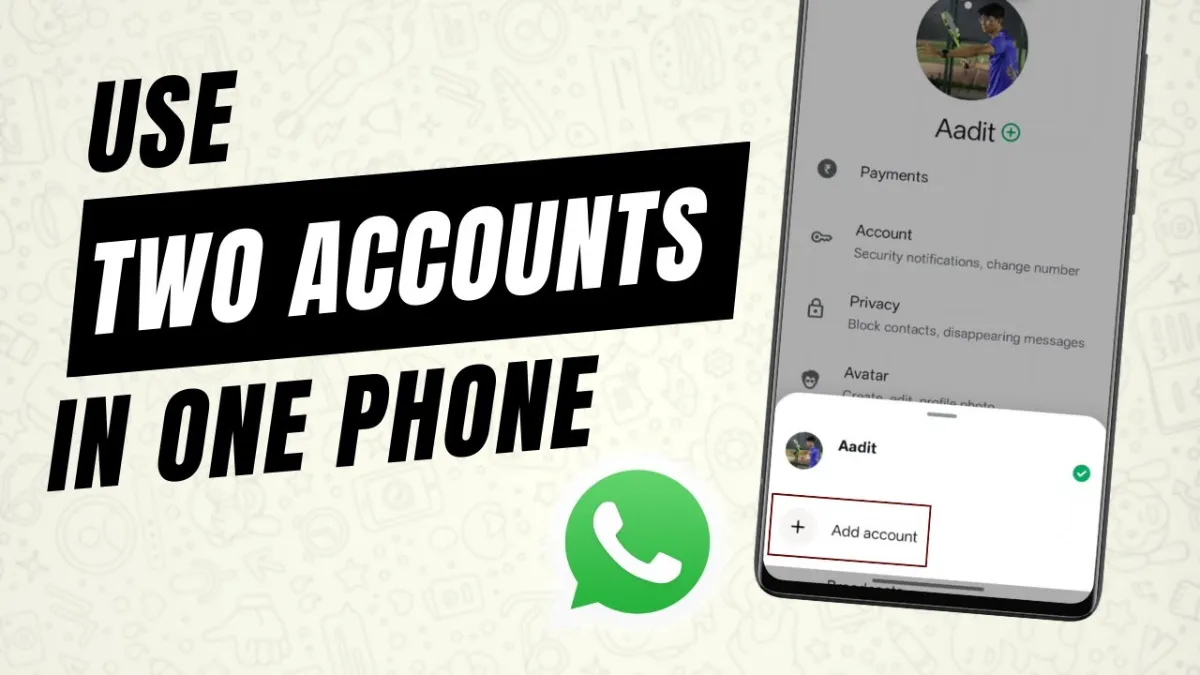
Why bother with two WhatsApp accounts?
Life’s messy. Most people want a clear line between personal chats and work, or maybe you’re a business owner who needs a separate line for customers. Some folks live abroad and want to keep their local number and home number active at the same time. It just helps to have everything in one place—saves you carrying two phones and keeps things simple.
If you’re an entrepreneur or freelancer, having WhatsApp Business next to your regular account means you’ll stay organized and respond faster. Travelers use it, too—pop in a local SIM for data, but keep the home number around so you don’t miss anything important.
Here’s how you can run two WhatsApp accounts on a single phone:
Method 1: Built-In Dual App or App Clone Feature (Android)
Lots of Android phones have a feature called “Dual Apps,” “App Clone,” or even “Second Space.” It’s super easy—your phone basically lets you duplicate apps like WhatsApp, so you get two icons and two accounts, side by side.
How to set it up:
– Open your phone’s Settings.
– Find the section named Apps, Applications, Dual Apps, or something similar (depends on your phone brand).
– Tap on WhatsApp and enable the clone or dual app option.
– Boom—a second WhatsApp icon shows up on your home screen, usually with a lil’ badge or number 2.
– Open it and set it up with your second number.
This works on most Samsungs (“Dual Messenger”), Xiaomis (“Second Space”), Oppos, Vivos, and OnePluses. Just poke around in your settings, you’ll spot it if your phone supports cloning.
Method 2: WhatsApp Business for a Second Account
WhatsApp Business isn’t just for shop owners or big companies. Anyone can use it as a second WhatsApp—it’s got cool extras like quick replies and labels, but really, you can just use it to separate accounts.
How to do it:
– Download WhatsApp Business from Google Play or the App Store.
– Install it—it sits right next to your regular WhatsApp.
– Open the app, agree to the terms, and enter your second phone number.
– Finish setup with profile details and you’re good to go.
This works for both Android and iOS. Both accounts work independently—messages, groups, and calls are totally separate.
Tip: Even if you’re not running a business, WhatsApp Business is free, safe, and supports all the usual stuff—chats, calls, group messages, status updates.
Method 3: Third-Party App Cloners (Android Only)
If your phone doesn’t come with dual app support, check out apps like Parallel Space or Dual Space. They let you run a “virtual” copy of WhatsApp, so you can sign in again with a different number.
What to do:
– Download Parallel Space from the Play Store.
– Open it, let it have the permissions it asks for.
– Tap the plus (+) sign, select WhatsApp to clone.
– Set up the second copy with another number.
These apps act like a bubble—each version of WhatsApp stays separate. They’re a lifesaver if your device is older or lacks cloning features.
Heads up: Stick to trusted apps, grab them from Google Play, and check reviews. Steer clear of apps that nag you with ads or ask for way too many permissions.
Method 4: Backup Switching (iOS Workaround)
iPhones are trickier—not much support for dual apps. If you’re curious, there’s a workaround, but it’s pretty clunky: you can only use one account at a time by backing up, uninstalling, and switching accounts.
Here’s how:
– Back up your current WhatsApp to iCloud (Settings > Chats > Chat Backup).
– Delete WhatsApp, reinstall it, and sign in with the second number.
– Restore chats from backup if you want.
– Want to swap back? Repeat the steps with your original account.
Honestly, this is not for everyday use. It’s slow and you’ll miss messages while you’re switching. If you need two accounts at the same time, Android or a spare device works better.
Tips for Managing Dual Accounts
– Use different profile pics so you can spot which account you’re using right away.
– Set up different notification sounds for each app.
– Rename your cloned WhatsApp—call it “Work,” “Family,” whatever you like, in your launcher.
– If you use WhatsApp Business, try out auto-replies.
– Regularly back up chats, especially if you keep switching between accounts.
Set up app locks (with fingerprint or face unlock) if you’re worried about others seeing your chats—really helps with privacy.
Is It Safe?
If you stick with official methods—built-in dual app features, WhatsApp Business—yes, it’s totally safe. Just don’t download weird modded WhatsApp versions (“GB WhatsApp,” “WhatsApp Plus,” etc.). Those can get your account banned, and sometimes carry malware.
Keep your phone updated and use good passwords or two-factor authentication, just for extra peace of mind.
Key Points
– You can have two WhatsApp accounts on one device using dual app features, WhatsApp Business, or certain app cloners.
– Android has more options; iPhone is limited, but WhatsApp Business helps.
– Don’t use risky, modified WhatsApp versions.
– Keep everything organized: name your apps, set different notifications, and back up often.
Frequently Asked Questions (FAQ)
Can I use two WhatsApp accounts at the same time on iPhone?
Not really. You can install WhatsApp Business next to normal WhatsApp, but otherwise, no. If you need both open together, you’ll need a second device or an Android.
Does running two WhatsApp accounts slow down my phone?
Usually, no—most modern phones handle this with no problem. If you use a third-party app, you might see a little more battery drain, but it’s manageable if you stick to trusted apps.
Will I get notifications for both accounts?
If both apps are active and running, yes, especially on Android. On iPhone, only the app that’s currently active gets real-time notifications—you have to switch to the other if you want to see its messages.
That’s it—you’re set to run two WhatsApp accounts on your phone, minus the stress.