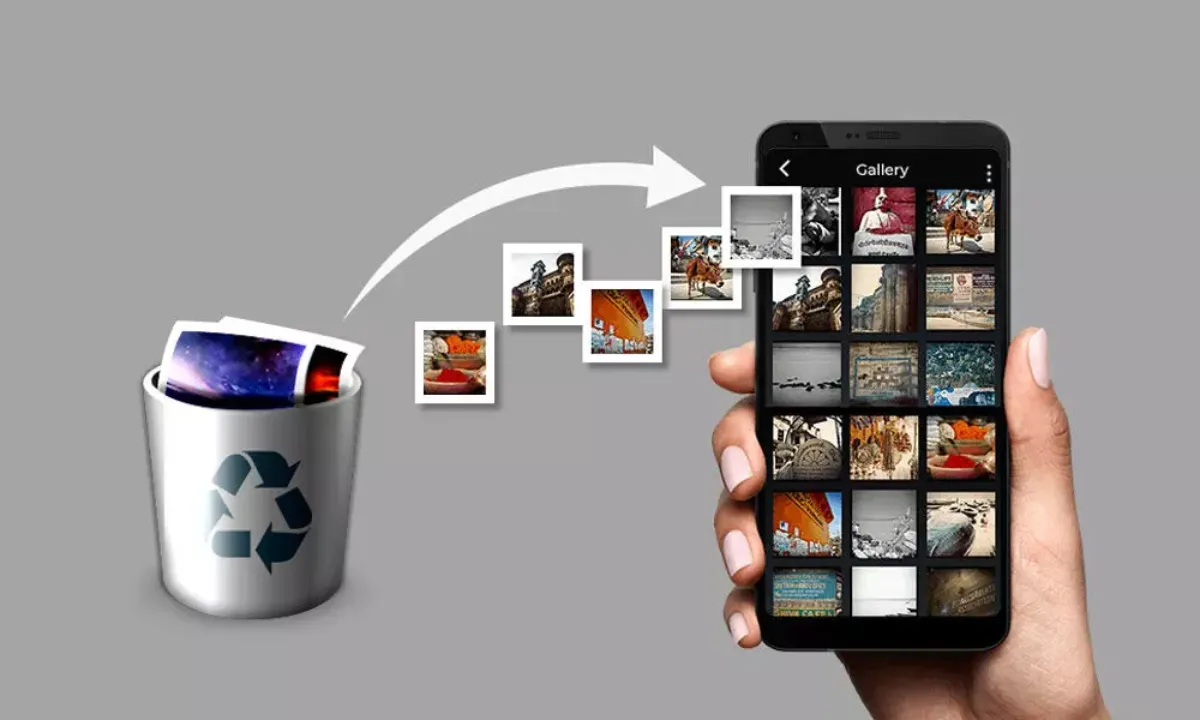
Why Deleted Files Might Not Really Be Gone
When you delete a photo or a file from your phone, it isn’t completely erased right away. Your phone just marks the file’s spot as “empty,” ready for something new. Until something new actually gets saved over that spot, your deleted file is still hanging around in the background. That’s why you need to act fast. Every time you download an app, take another photo, or fiddle with updates, your chances of recovery take a hit because you might overwrite your lost data.
Phones these days use flash storage—not old-school hard drives—but it works similarly for deleted stuff. “Deleted” really just means “waiting in the wings until I get replaced.” The sooner you move, the better your shot at rescuing your files.
What To Do When You Realize You’ve Deleted Something
Speed is everything here. If you want your files back, do this right away:
Stop using your phone. Seriously—don’t take more pics, download anything new, or save anything at all. Every little thing you do increases the odds of your lost data getting overwritten.
Switch on Airplane Mode. This cuts off syncing, app updates, and automatic cloud activity—all things that could make recovery harder.
Check your cloud backups next. Maybe Google Photos, iCloud, or another app already has a copy of your stuff.
Don’t forget the “Recently Deleted” or Trash folder. Both iOS and Android keep deleted stuff in a holding pen for about 30 days.
These steps give you the best chance of getting your files back—sometimes without any fancy recovery apps or tools.
How To Recover Deleted Photos on iPhone
iPhones actually make recovering deleted photos pretty easy. Always start with the basics.
Try the “Recently Deleted” Album First
Your iPhone stashes deleted photos for 30 days before actually dumping them.
Just open the Photos app.
Go to Albums, tap Recently Deleted.
Now, pick the photos you want and tap Recover.
That’s it! Simple, no need for extra apps or anything.
Restore from iCloud Backup
If “Recently Deleted” is empty, turn to iCloud. If iCloud Photos is on, your photos might still be floating around in the cloud.
Go to Settings, tap your name, then iCloud, then Photos.
Double-check that iCloud Photos is on.
Wait a bit for things to sync up—sometimes your photos reappear like magic if they were backed up.
If you have a real need, you can restore your whole phone from an iCloud backup. Big warning: that brings your whole phone back to an earlier state, so you’ll lose anything new you added since that backup. Take care with this one.
Third-Party Recovery Tools for iPhone
If nothing else works, check out paid tools like Dr.Fone, PhoneRescue, or Tenorshare UltData. They dig deep into your iPhone’s storage and sometimes find photos long gone from your main albums. Most need a computer and a paid upgrade, but you can usually run a free scan to see what’s still possible to recover. Always grab these from the official websites—the last thing you need is malware on top of your data woes.
How To Recover Deleted Files on Android
Android phones are a bit all over the place depending on brand, but the basics are the same.
Check “Trash” or “Recycle Bin” First
Many new Androids (Samsung, Pixel, Xiaomi) have a trash or recycle bin hiding in their file manager or gallery. Here’s what to do:
Open the Gallery or Files app.
Look for Trash, Recycle Bin, or Recently Deleted.
Pick what you want, and hit Restore.
Usually, your phone gives you about a month before it really deletes these files.
Check Google Photos Backups
If you rely on Google Photos, here’s a good place to look.
Open the Google Photos app.
Tap Library, then Trash.
Pick what you want, and tap Restore.
Photos stay in the Google Photos trash for about 60 days, so you get a little extra time—assuming you had backup turned on.
Try Android Data Recovery Software
If you’ve checked everywhere else and come up empty, time to try third-party apps like DiskDigger, EaseUS MobiSaver, or FonePaw Data Recovery. They scan deep into your phone’s storage, but need USB debugging turned on, which is a bit technical. Some work just fine without “rooting” your phone, but others need deeper access for a thorough scan. Always, always back up what you have now before running these apps—you don’t want to make things worse.
How To Stop This From Happening Again
It’s great to recover files, but it’s a whole lot less stressful if you never lose them in the first place. Here’s how people keep their data safe:
Turn on automatic cloud backups. Google Photos on Android or iCloud for iPhone are your friends—let them do their thing.
Copy stuff to your computer or an external drive every so often. Yes, it’s a pain, but future-you will thank you.
Some file manager apps have their own trash can feature—find one you like for extra peace of mind.
Think twice before using “cleaner” apps; they sometimes wipe things out for good, no warning.
Antivirus isn’t just about viruses—good ones can help avoid malware that trashes your files.
Even just the free versions of these cloud backups can save a lifetime of pictures and files. Don’t skip it.
When You Can’t Get Your Data Back
Sometimes, despite your best moves, your files just aren’t coming back. Usually, that means:
Too much new stuff took their place on the phone.
You did a factory reset with no backup.
Your file was encrypted, and the key is gone.
Your phone is physically damaged, especially the storage chip.
If you’re truly desperate—say, your phone is broken with wedding photos or essential documents locked inside—there are professional services that crack open devices and recover data. They’re expensive, but if you have something truly irreplaceable, it’s an option.
For most people, though, acting fast and checking all the built-in recovery tools gets things solved without spending money.
Quick Recap
Deleted photos and files can usually be brought back—unless you wait too long.
As soon as you realize you’ve lost something, stop using your phone and hit Airplane Mode.
Always check “Recently Deleted” or trash folders. Most phones keep stuff for about 30 days.
Cloud backup (iCloud or Google Photos) is your easiest option.
Third-party apps can help, but stick with well-reviewed, safe choices.
Nothing beats a regular backup habit.
Frequently Asked Questions (FAQ)
Can I recover photos deleted longer than 30 days ago?
Sometimes. If they’re in the cloud (iCloud, Google Photos) and still backed up, you might still get them. But if they were only on your phone and the phone has had a lot of new data since, they’re probably gone unless a pro steps in.
Does a factory reset erase everything—even deleted files?
Yeah, it does. Factory reset wipes your phone, reinstalls the system, and takes just about everything with it. Save anything important before you reset.
Are free data recovery apps safe?
Some are, some aren’t. A lot of free apps spam you with ads or, worse, slip in malware. Stick with popular, reviewed tools from official sites. Paid versions are usually safer and dig deeper.
If you act quickly and know where to look, you often can recover deleted photos or files from your phone. iPhone or Android, it boils down to not panicking, stopping any new activity, and letting built-in tools do their thing. Pair that with regular backups, and you’ll spend a whole lot less time stressing about lost memories or important files. Just remember—when disaster strikes, speed is your best friend.
Leave a Reply
You must be logged in to post a comment.