
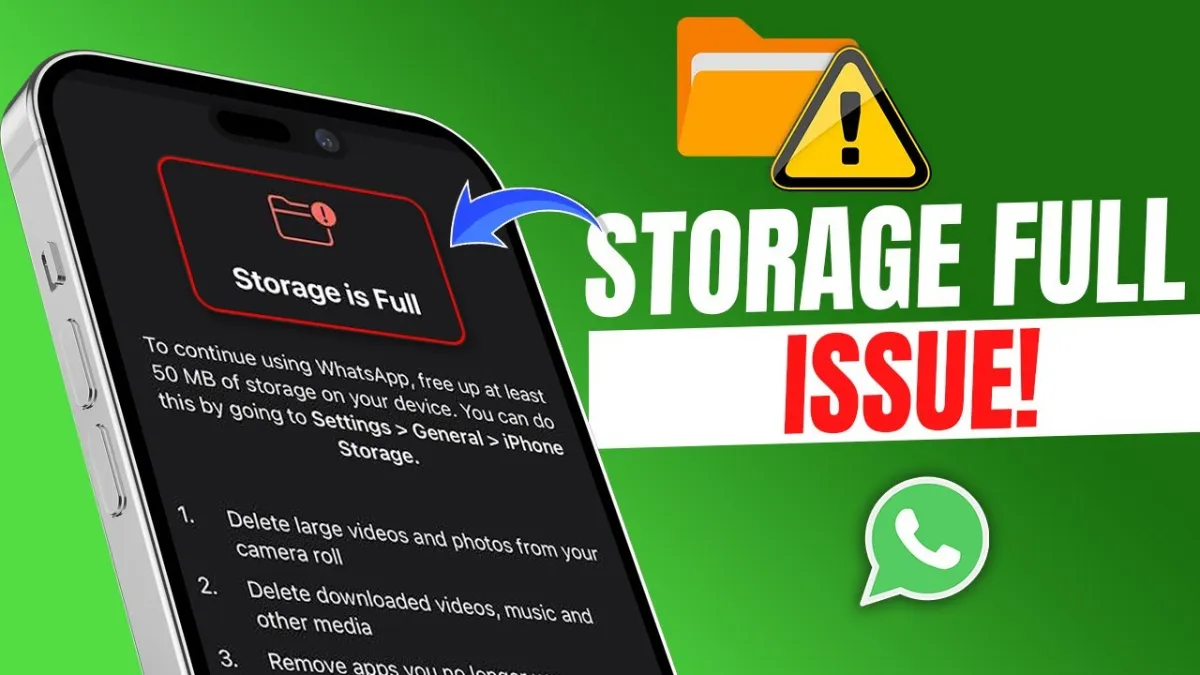
Why Your Phone Keeps Saying “Storage Full” When Apps Aren’t the Problem
It’s easy to blame apps for hogging all your storage, but that’s just part of the story. Sure, every app takes up some space, but it’s the hidden stuff—like cached data, downloads, old messages, and piles of photos—that really fills things up. Apps themselves are just the tip of the iceberg.
Take messaging apps, for example. WhatsApp might only be around 150MB, but open up its storage details and you’ll find a cache that’s ballooned into gigabytes with old photos and videos. The same thing happens with Spotify, Netflix, and other apps that save stuff offline—you get more hidden junk than you realize. The real key here is to target that hidden clutter and leave your apps alone.
Figure Out What’s Actually Using Up Your Space
Start with a storage check. On Android, head to Settings and tap Storage. On iPhone, go to Settings > General > iPhone Storage. You’ll see a breakdown—apps, photos, messages, “system,” and more. Pay special attention if you see something called “Other” or “System Data”—that’s where a ton of temp files and caches hide.
Sometimes you’ll find your camera roll has swallowed up 8GB, or a game is eating 3GB in cached extras. Once you spot the worst offenders, you can start to clean house, no deleting required.
Clear Out App Caches Without Uninstalling Anything
One of the fastest space-savers is clearing the app cache. The cache is just temporary data that helps apps run faster—but it piles up. Wiping it won’t touch your main data or settings—just the extra fluff.
On Android: Go to Settings > Apps, pick an app (think Instagram, Chrome, YouTube), hit Storage, and tap Clear Cache. Repeat for any app with a crazy cache size. Focus on social media, browsers, and streaming apps first—they’re usually the worst hoarders.
On iPhone: Apple doesn’t offer a simple “clear cache” button for most apps, but here’s a workaround—offload and reinstall. Go to Settings > General > iPhone Storage, pick an app, and tap Offload App. This removes the app but saves your documents and settings. Download it again from the App Store, and you’re good. For Safari, it’s easier: go to Settings > Safari > Clear History and Website Data.
Delete Downloaded Content from Streaming and Reading Apps
Those times you downloaded albums for a road trip or saved a whole season on Netflix? They add up—fast. Just a couple of downloaded movies can eat up several gigs, and old music playlists or podcasts stick around long after you’re done.
Spotify: Go to settings, tap Downloads, and delete playlists you don’t listen to anymore.
Netflix: Tap your profile, then Downloads. Remove anything you’ve already watched.
YouTube: Go to Library > Downloads. Drop any saved videos you’re done with.
Kindle: Tap the three dots on a book and remove it from your device.
Every time you clear out old downloads, you reclaim space without missing your favorite shows or songs.
Compress or Tidy Up Photos and Videos
Photos and videos, especially HD ones, are storage killers. But honestly, you don’t have to delete your memories. Use your device’s built-in space-saving features.
iPhone: Switch on Optimize iPhone Storage (Settings > Photos). Your photos stay in iCloud, with smaller copies saved on your phone.
Android: Use Google Photos with Storage Saver turned on. It shrinks photos down while keeping them accessible.
You can store thousands of memories while freeing up space. And don’t forget to dump duplicates, blurry shots, and bursts. On iPhone, Photos > Utilities > Duplicates makes this easy. Android users, Google Photos’ Storage tab helps you spot wobbly videos and double-ups.
Move Big Files to the Cloud (or to an SD Card)
Cloud storage is your friend. Google Drive, iCloud, Dropbox, and OneDrive let you stash files online and open them whenever—right from your phone.
Upload heavy files—videos, documents, old WhatsApp backups—and then delete them from your phone. Once uploaded, you keep access while freeing up the device. If you’re on Android and have a microSD slot, move photos, videos, and even some apps straight to that card (Settings > Storage > SD Card). More room in seconds.
Clean Out Messaging Apps
Messaging apps love to collect junk—years of photos, voice notes, and memes from group chats. Out of sight, out of mind, but still hogging space.
WhatsApp: Head to Settings > Storage and Data > Manage Storage. Delete big files and silly forwards, or use auto-delete (Settings > Chats > Chat Backup) to trim things every 30 days.
Telegram and Messenger: The process is similar—just head to their storage controls and clear out large or old attachments.
As with other apps, you can clear caches to wipe out built-up data. Android lets you do it directly from Settings; on iPhone, just offload and reinstall the app.
Turn Off Auto-Downloads and Auto-Backups
Some apps just won’t stop downloading stuff in the background—updates, backups, new podcast episodes, whatever. This can fill your phone without you noticing.
App updates: Switch off automatic downloads on iPhone (Settings > App Store) and Android (Google Play Store > Settings > Auto-update apps).
Photo backups: Pause iCloud or Google Photos sync if you’re running short on space.
Streaming: Stop Netflix, Spotify, or your podcast app from auto-downloading new episodes.
Giving yourself manual control over downloads is an easy win for keeping storage in check.
Quick Recap
You don’t have to ditch your favorite apps. Focus on:
Clearing app caches (especially social, streaming, and browsers).
Deleting offline downloads.
Compressing photos and videos and removing duplicates.
Moving big files to cloud storage or SD cards.
Cleaning out old message attachments.
Disabling automatic downloads and updates.
Frequently Asked Questions (FAQ)
Can I really free up space without uninstalling apps?
Absolutely. Most storage problems come from old junk files, downloads, and photos—not the apps you use daily.
Will clearing the cache wipe my saved info or logins?
Nope. “Cache” just means temporary files. Your logins and data will stick around.
Is cloud storage safe?
Big-name services like iCloud, Google Drive, and Dropbox use strong encryption. Add two-factor authentication and you’re set. Just use common sense with anything super sensitive.
Final Thoughts
You don’t have to choose between your favorite apps and a smooth, fast phone. With regular clean-ups—clearing caches, managing downloads, compressing photos, and using the cloud—you keep both. Make storage maintenance a routine, and you’ll never panic over a “Storage Full” notification again. Keep your phone lean and enjoy all your apps, hassle-free.