
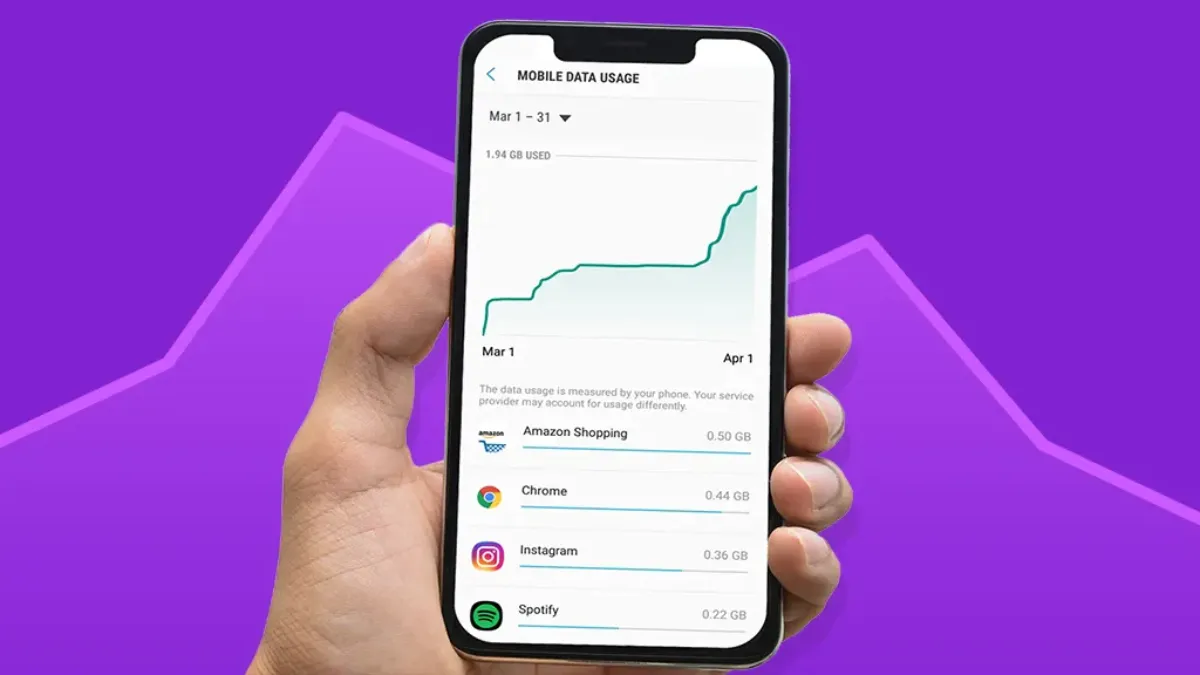
Tired of blowing through your mobile data just from scrolling TikTok or Instagram? You’re not the only one. Those apps chew up gigabytes like it’s nothing, mostly thanks to all those auto-playing videos and high-def clips running in the background. But here’s the thing—you don’t have to let it drain your data plan. With a few simple changes, you can keep using TikTok and Instagram without blowing your budget (or dealing with slow speeds before your month is up).
Let’s break it down, step by step, and help you get the most out of your gigabytes—no need to quit your daily scroll.
Why TikTok and Instagram Eat Up So Much Data
Both TikTok and Instagram are built for endless engagement. That means videos are pretty much everywhere, and they don’t wait for you to tap play—videos just start rolling as soon as they pop up. Most uploads are in HD or even 4K, and the apps keep refreshing content behind the scenes, even when you’re not using them. Throw in live streams and Stories, and your data goes fast.
Here’s what’s really draining your data:
– Auto-play: Videos start playing automatically, whether you want them to or not.
– High-quality uploads: Everyone wants to post in HD these days.
– Background refresh: Your phone’s downloading content even when you’re not scrolling.
– Live features: Real-time video uses a lot of data, and you can’t always pause it.
Spend just one hour on TikTok, and you could easily burn through 500MB—sometimes more. Instagram’s just as hungry, especially if you love Reels and Stories. If you get how these apps work, you’re halfway to fixing the data drain.
How To Save Data On TikTok
TikTok actually gives you a few ways to cut back on data use. Tweak a couple of settings, and you’ll notice a difference.
1. Turn On Data Saver Mode
TikTok’s got a data saver option. It drops the video quality a bit but can chop your data use by as much as 40%.
Here’s how:
– Open TikTok and head to your profile.
– Tap the three lines at the top right.
– Go to Settings and Privacy > Data Saver.
– Switch it on. You can set it for all the time or just when you’re using mobile data.
2. Turn Off Auto-Play On Mobile Data
Auto-play is fun, but it’s one of the fastest ways to kill your data. Set TikTok to only auto-play when you’re on Wi-Fi.
How:
– Head to Settings and Privacy > Playback.
– Under Auto-play, pick Wi-Fi only.
Now your videos won’t start until you’ve got a Wi-Fi connection.
3. Block Background Data
TikTok loves to keep updating even when you’re not looking. Shut that down.
For iPhone: Settings > General > Background App Refresh > Turn off TikTok.
For Android: Settings > Apps > TikTok > Mobile data & Wi-Fi > Turn off background data.
This stops TikTok from pulling in new stuff unless you’re actually using it.
4. Download On Wi-Fi
If you watch the same videos over and over, download them while you’re on Wi-Fi so you’re not streaming them every time.
Tap Share on the video and select Save video (if the creator allows). Check your gallery or TikTok’s Saved area to watch later. Always make sure the creator lets you download it.
How To Use Less Data On Instagram
Instagram is just as bad—maybe even worse—when it comes to data. All those stories, Reels, and live videos add up. But there’s good news: you can cut your data use without giving anything up.
1. Switch On Data Usage Settings
Instagram lets you lower video quality and stop certain things from auto-playing.
Steps:
– Go to your profile, then Settings.
– Tap Account > Data usage and media quality.
– Turn on Use less data for videos.
This makes everything a bit lighter, and you’ll notice the difference in your data use.
2. Set Auto-Play To Wi-Fi Only
Turn off auto-play for videos unless you’re on Wi-Fi.
In Settings > Account > Data usage and media quality, look for Video auto-play and pick Wi-Fi only.
3. Avoid High-Quality Uploads
Only upload in top quality when you’re on Wi-Fi. Don’t bother with high-res uploads or downloads if it’s not necessary, and keep your Stories and Reels shorter and lower-res whenever you’re on mobile data.
4. Reduce Preloading
Instagram preloads a bunch of stuff—Stories, Reels—so everything feels seamless, but it uses data quietly. You can use Instagram Lite or the mobile website (m.instagram.com) for a lighter experience, and make sure to close the app when you’re not using it to stop it from preloading in the background. Third-party apps can help you track and limit usage, too.
Extra Tricks To Protect Your Data On Both Apps
1. Use Your Phone’s Data Saver
Both iPhone and Android come with built-in data-saving settings. On Android: Settings > Network & Internet > Data Saver, and only allow TikTok/Instagram to bypass it if you really need to. On iOS: Settings > Cellular > Cellular Data Options > Low Data Mode.
These features help rein in background data for all your apps.
2. Monitor Your Data Usage
Check in on your phone’s data usage so you can see exactly how much TikTok or Instagram is eating up, app by app. Set warnings or caps so you catch problems before you hit your limit.
3. Limit Social Media Time
Seriously, sometimes just spending less time on the apps is the best way to save data. Use app limits or just pick a few times a day to check in. Stick to Wi-Fi for heavy sessions.
4. Try Alternative Browsers Or Lite Versions
Both TikTok and Instagram have lighter web versions (m.tiktok.com, m.instagram.com), and there are “Lite” versions of the apps in some regions. They use way less data and usually work just as well for basic browsing.
Key Points To Remember
– TikTok and Instagram use a lot of data because of video, background activity, and auto-play.
– Turn on Data Saver modes and limit auto-play to Wi-Fi to instantly cut back on data.
– Stop background refresh, track your data usage, and use your phone’s own Data Saver features.
– Download videos over Wi-Fi if you want to rewatch them.
– Consider picking lighter app versions or switching to browsers instead.
FAQ: Data Use On TikTok & Instagram
Q: How much data does TikTok actually use?
A: Standard quality uses 500MB–1GB per hour. With Data Saver on, you’re looking at closer to 200–300MB.
Q: Can you use TikTok and Instagram without mobile data?
A: Yes. Always use Wi-Fi when you can, turn on Wi-Fi-only auto-play, and download what you want ahead of time. You can even use the apps offline for stuff you’ve already loaded.
Q: Does disabling auto-play really work?
A: Absolutely. Turning off auto-play, especially on mobile data, can cut your data use in half.
Bottom Line
You don’t have to give up TikTok or Instagram to get your data use under control. Just tweak your settings, watch your usage, and switch things up when needed. Once you’ve made these quick changes, you’ll be able to scroll, watch, and post without stressing about your data plan. Manage your settings smartly, and your data—and your peace of mind—will last a whole lot longer.