
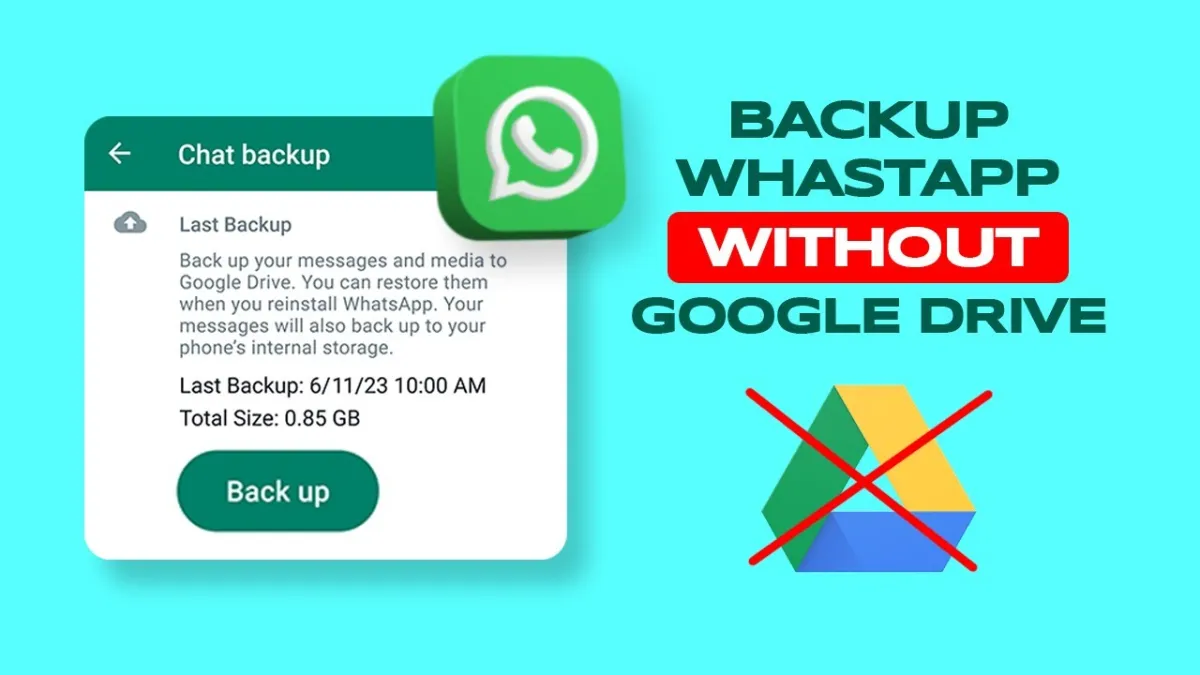
Worried about losing your WhatsApp messages, photos, or videos? You’re definitely not the only one. Pretty much everyone relies on WhatsApp to stay connected, and lots of people trust Google Drive for backups—then run into storage problems, odd syncing issues, or feel a little uneasy about privacy. Here’s some good news: you don’t actually need Google Drive to back up your chats, and it’s really not complicated.
Let’s break down some easy ways to save your WhatsApp conversations without touching Google Drive. Whether you want your data stored locally, emailed, or handled with a special app, there’s a way for you. Maybe you’re swapping phones, want to keep sensitive chats private, or just want to manage your own stuff. Whatever the reason, these methods can save you a bunch of stress. I’ll guide you through Android and iPhone options, step by step, with practical tips so your chats stay safe, private, and handy whenever you need them.
Why Avoid Google Drive for WhatsApp Backups?
Sure, Google Drive is the default for Android, but it’s not perfect. WhatsApp backups eat into your free 15GB of Google storage—the same space you use for Gmail and Photos. Get too close to your limit, and your backups can tip you over the edge, which means paying for more space.
Then there’s the account situation. Google Drive backups stick to your Google account, so if you lose access or switch accounts, getting your chat history back becomes a hassle. Some people just don’t want Google holding their messages, even with encryption. Backups happen only when your phone’s charging, on Wi-Fi, and idle. Miss one requirement, and you might lose the latest chats.
Skipping Google Drive gives you more freedom and control—no more worrying about cloud limits, losing access, or privacy.
Method 1: Local Backups on Android
The easiest workaround? Use your Android’s built-in local backup. WhatsApp automatically saves daily backup copies of your chats, quietly hiding them in a folder on your phone. The files are encrypted and get updated around 2:00 AM each day (as long as you’re charging the phone and have Wi-Fi).
Here’s how you find and save your backups:
1. Open your file manager (the pre-installed one or an app like Solid Explorer).
2. Go to Internal Storage > WhatsApp > Databases.
3. Look for files like msgstore.db.crypt14—those are your backups.
4. Copy them to a safe spot: SD card, external drive, or any cloud service you trust (just not Google Drive if you want full separation).
With these local files, you’re in control. To set up a new phone, copy the backups and WhatsApp will find them and ask if you want to restore chats. Don’t delete your backups until you’ve moved them and double-checked everything works.
Add Some Extra Security
To make your local backups even safer, turn on end-to-end encryption:
– Open WhatsApp > Settings > Chats > Chat backup.
– Tap “End-to-end encrypted backup” and set a password.
Now, nobody can access your chats unless they know your password—even if they get hold of your backup.
Method 2: Email Chat Export (Works on Both Android and iPhone)
If you only want to keep a copy of an important conversation (not your whole chat history), emailing the chat is easy and doesn’t use extra storage space.
Here’s what you do:
1. Open the chat you want to save.
2. Tap the contact or group name at the top.
3. Find and tap “Export chat.”
4. Choose whether to include media.
5. Pick your email app and send the chat to yourself or someone you trust.
You’ll get a .txt file of the messages, and any photos or videos you include will show up as attachments. It’s great for archiving individual chats.
Keep in mind: this process only works one chat at a time, and really long chats with a bunch of pictures or videos might not fit as an email attachment. And these files can’t be “restored”—they’re more like reference copies.
Still, it’s handy to combine email exports with other backup methods if you never want to lose a crucial conversation.
Method 3: Third-Party Backup Apps (Android Only)
For Android users who want more features or automation, there are solid third-party apps that let you back up WhatsApp to an SD card, computer, or other cloud storage (like Dropbox or OneDrive).
A few popular examples:
– Helium Backup: backs up your apps and data to local storage or cloud without root.
– Dr.Fone—WhatsApp Transfer: moves and backs up WhatsApp chats between phones.
– Backuptrans WhatsApp Transfer: saves everything to your PC or Mac, with all your photos and videos.
With Helium as an example:
1. Download Helium Backup from Google Play.
2. Open the app and grant all permissions.
3. Find WhatsApp in the list and tap Backup.
4. Pick your backup location—local storage, SD card, or one of your cloud accounts.
Keep your backup files somewhere secure. You can restore them to your current or a new phone using the same app. Always use apps from official stores or trusted websites, double-check permissions, and read the reviews before installing. Some might ask for payment for full features, so check before you jump in.
Remember: These aren’t official WhatsApp products—use them if you’re comfortable and always look at their privacy policy.
Method 4: Manual Transfer to PC or Mac
If you prefer total control, just move your WhatsApp data straight to your computer.
For Android:
1. Connect your phone to the computer with a USB cable.
2. Set the phone to File Transfer mode.
3. Navigate to Internal Storage > WhatsApp > Databases.
4. Copy the msgstore.db.crypt14 and, if you want all your pictures and videos, the Media folder.
Keep these files on a secure drive—when you set up a new phone, you can move them back in place.
On an iPhone:
You can’t get WhatsApp files directly, but you can back up the whole phone (including WhatsApp data) to your computer using iTunes or Finder.
1. Connect your iPhone to your computer.
2. Open iTunes (on Windows) or Finder (on Macs with Catalina or newer).
3. Click your device, head to Summary.
4. Turn on “Encrypt local backup” and create a password.
5. Click “Back Up Now.”
This process keeps everything—WhatsApp included—on your computer. To restore, just set up your new device from this backup.
Manual transfers put you in the driver’s seat, as long as you keep track of where you stashed your files and make backups regularly.
Method 5: iCloud Backup (Only for iPhone)
If you’re on iPhone, WhatsApp backs up to iCloud—no Google required.
To set up iCloud backup:
1. Open WhatsApp > Settings > Chats > Chat Backup.
2. Tap “Back Up Now” for an immediate save.
3. Turn on “Auto Backup” to keep things updated automatically.
4. Make sure you’re connected to Wi-Fi and iCloud has enough space (the free plan only gives you 5GB).
End-to-end encryption for backups is available in settings. Restoring is simple: reinstall WhatsApp, verify your phone number, and follow the instructions.
Keep an eye on your iCloud storage, especially if you have a lot of photos and videos.
Main Reminders
– You don’t have to use Google Drive for WhatsApp backups. There are other ways—local phone storage, email, third-party apps, computer transfers, or iCloud on iPhone.
– Android users have a lot of flexibility with local, cloud, or SD card options.
– iPhone users can use iCloud or encrypted backups to their computer.
– Email export is perfect for saving key conversations.
– Always encrypt backups and keep them somewhere safe.
– Make backing up a regular habit so you don’t risk losing anything.
Frequently Asked Question (FAQ)
Can I restore WhatsApp chats from a local backup without Google Drive?
Absolutely. On Android, drop your backup (msgstore.db.crypt14) in the WhatsApp/Databases folder of your new phone. When you install WhatsApp and set it up, it’ll find and restore your chats. On iPhone, use an encrypted iTunes or Finder backup.
Is it safe to use third-party apps for WhatsApp backup?
If you stick to well-known apps with strong reviews and clear privacy practices, you’re fine. Skip anything sketchy, and always store backups somewhere secure.
How often should I back up WhatsApp chats?
For frequent users, once a week is smart. Automation is built into WhatsApp, or you can schedule backups with apps. Make a backup before swapping phones or factory resetting, no excuses.
Final Thoughts
Backing up WhatsApp chats without Google Drive isn’t just possible—it’s usually easier and safer. You’re in charge of your data, and you skip annoying limits, failed transfers, or privacy worries.
Find the method that fits your routine. Keep it simple with local or iCloud backups, email crucial chats, or double up by stashing copies on your computer too. Don’t wait until something goes wrong. Start your backups now—and leave Google Drive out of the picture.