
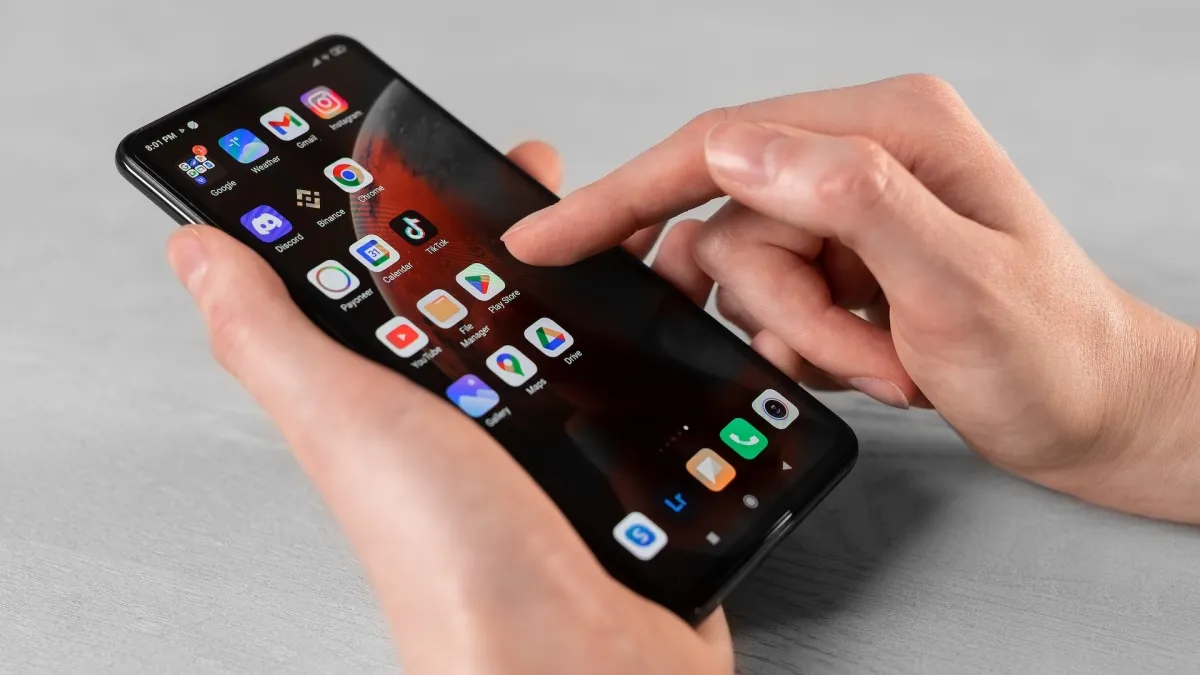
Why bother customizing your Android home screen? Simple—because you see it every time you unlock your phone. If it’s messy or just the factory default, finding anything feels like a chore. But when you take a little time to set it up your way, suddenly everything feels faster, cleaner, and built for you.
It’s not just about looks, either. Tweaking your home screen lets you work how you want and show off a bit of your own style. You can put your favorite apps front and center. Add widgets for weather, your calendar, or headlines—stuff you check ten times a day, now at a glance. Go minimalist, go wild, or match your phone’s vibe to your mood. It’s your call.
Want to get started? Here’s how to give your Android home screen a total refresh.
Choose a Launcher That Suits You
The launcher your phone comes with gets the job done, but that’s it. If you want real control, check out launchers like Nova, Action, or even Microsoft Launcher. With these, you get to mess with pretty much everything: icon sizes and shapes, how many apps you fit on a page, what happens when you swipe or pinch. For example, Nova lets you set up custom gestures and edit your grid layout—super useful if you’re a “my way or the highway” kind of person.
Pick a Wallpaper That Actually Feels Right
Wallpapers set the mood every time you unlock your phone. Go for a crisp photo, some abstract shapes, or maybe a moving live wallpaper. Just keep it clear—no crazy busy images that make it impossible to spot your apps. If you’re stuck, try Google Wallpapers or Zedge for easy, good-looking options. Sometimes a gentle gradient beats a flashy photo.
Get Your Apps in Order
Nobody likes swiping through a million icons. Sort your apps into folders like “Work,” “Social,” or “Games,” and slap on clear names. Most launchers let you adjust the grid so you can pack more apps in—like 5×5 or 6×6—reducing all those accidental fat-fingered taps. Stick your essentials on page one. The apps you only open once a month? Throw ‘em on another screen or leave them in the app drawer.
Use Widgets to Stay Up-to-Date
Widgets are like mini dashboards right on your home screen. Weather, calendar, news, music—just pick what matters most to you. You can try popular widget apps like KWGT if you want to build something custom, or stick with stock options for simplicity. Place them above or beside your apps so everything looks tidy, not crowded.
Give Your Icons a Fresh Look
Let’s be honest: default icons rarely match. Icon packs like Whicons, Candycons, or LineX change everything at once. It’s a small detail, but it helps your phone feel polished and pulled together. Most launchers support icon packs—just download one from the Play Store, apply it, and you’re set.
Turn On Dark Mode and Adaptive Themes
Most Android phones now let you use dark mode or themes that shift colors to match your wallpaper. Head to Settings > Display > Dark theme. With a dark wallpaper and matching icons, your screen is easy on the eyes, especially at night, and looks seamless.
Want to Go Further? Try These Tricks
Gestures: Ditch the old navigation buttons. Swipe up, down, or sideways to move around your phone. You get more space, and it just feels smoother. Turn this on under Settings > System > Gestures.
Multiple Home Screens: You don’t have to cram everything onto one page. Set up different screens for different moods or tasks—like one for work, one for play, and one for essentials.
Hide What You Don’t Use: Some apps linger in your drawer, but you never open them. Most launchers let you hide these without uninstalling. In Nova Launcher, open settings, find “Hide apps,” and check what you want gone.
Key Takeaways
– Get a third-party launcher for real customization options
– Choose a wallpaper that’s sharp and matches your icons
– Group apps into small, labeled folders and tidy up your grid layout
– Use widgets smartly for info you actually want at a glance
– Download an icon pack for a clean, unified look
– Use dark mode and themes to make your screen easier on the eyes
– Play with gestures and multiple home screens to speed things up
FAQ
Can you customize your home screen without installing a new launcher?
Definitely. Most phones let you move apps, swap wallpapers, and add basic widgets out of the box. But if you want more, like special gestures or custom icons, a third-party launcher is the way to go.
Isn’t changing your launcher going to slow things down?
Usually not. Good launchers like Nova are light and fast. Just don’t pile on too many live widgets or super fancy themes on older phones.
What if you totally mess up your layout?
No worries. Most launchers let you reset to default or restore a saved layout. You’ll usually find this under the launcher’s settings. It’s a good idea to back up your setup first, if you can.
Final Thoughts
Customizing your Android home screen is way more than just picking pretty colors. It’s about making your phone work better for you—faster, cleaner, more “yours.” Start simple: new wallpaper, try out a widget, maybe freshen up your app icons. If you like where it’s going, play around with a new launcher and advanced tricks. Your perfect home screen isn’t far off—just a couple taps and swipes away.